
Daily Roster Wizard: how to plan smarter break times
Better service for your customers, and a better day for your team.
Too many people on a break at the wrong time is one of the most common reasons queues build. The Daily Roster Wizard puts every break at the time that answers the most calls on time, within your break rules, and reshuffles everyone's breaks in seconds when someone calls in sick or the phones are busier than expected.
Watch the 7-minute video below, or jump to the part you need. Each section underneath has the same steps in writing.
1Why break times matter
Your team and their shift times are set for the day. What you can change is when everyone takes their breaks. When too many people are on a break at the wrong time, the queue builds, customers wait longer and the people still on the phones feel the pressure.
The wizard tries every allowed time for every break, within your rules, and picks the combination that answers the most calls on time. Everyone still gets the breaks they're entitled to.
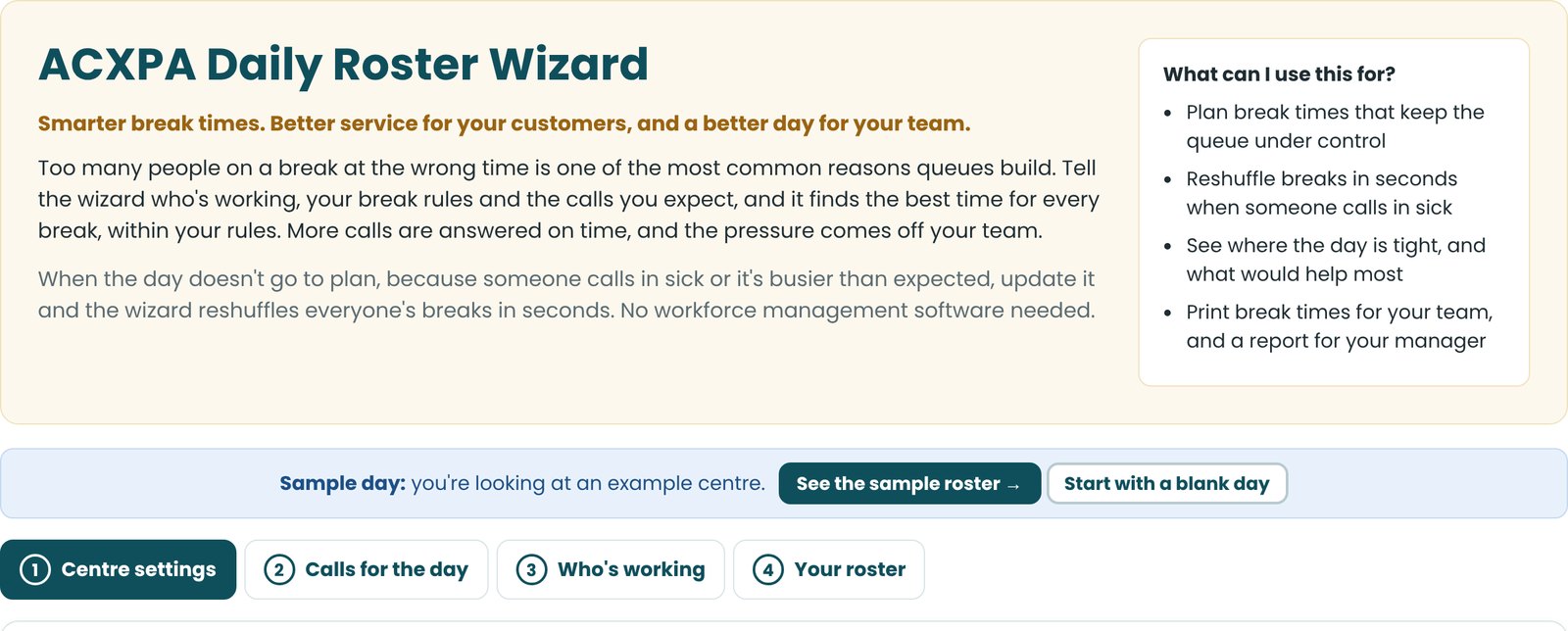
There are four steps along the top: Centre settings, Calls for the day, Who's working and Your roster. The first time you open it you'll see a sample day. Press See the sample roster to explore a finished result, or Start with a blank day to use your own.
2Centre settings (once only)
You set these once. Save them and they're ready every time you open the wizard, on any device.
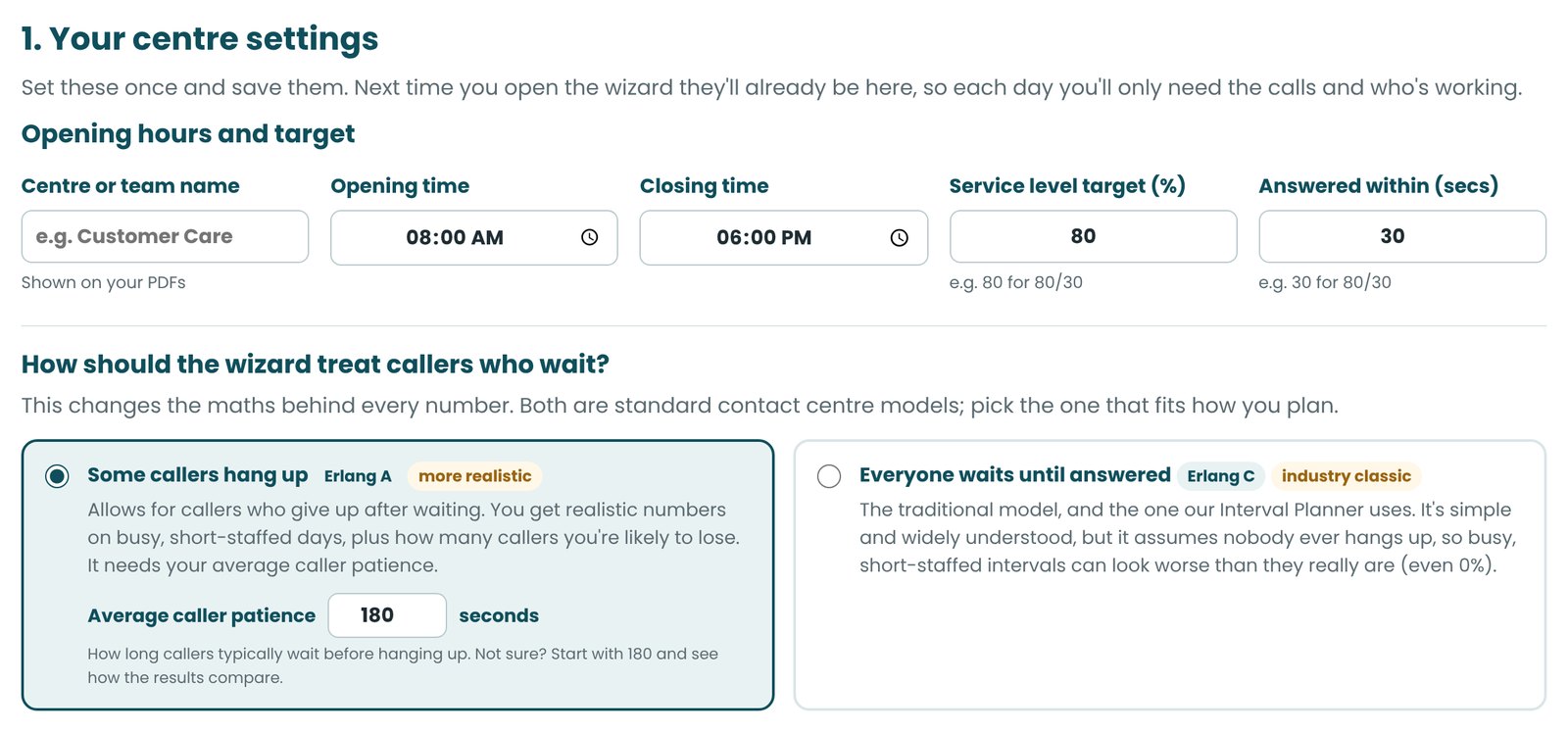
- Enter your centre or team name (it goes on your PDFs), your opening and closing times and your service level target, for example 80% of calls answered in 30 seconds.
- Choose how the wizard treats callers who wait. For most centres Some callers hang up (Erlang A) is the realistic choice: enter roughly how long people wait before giving up. Not sure? Start with 180 seconds. Everyone waits until answered (Erlang C) is the traditional model our Interval Planner uses.
- Press Save centre settings.
Break rules
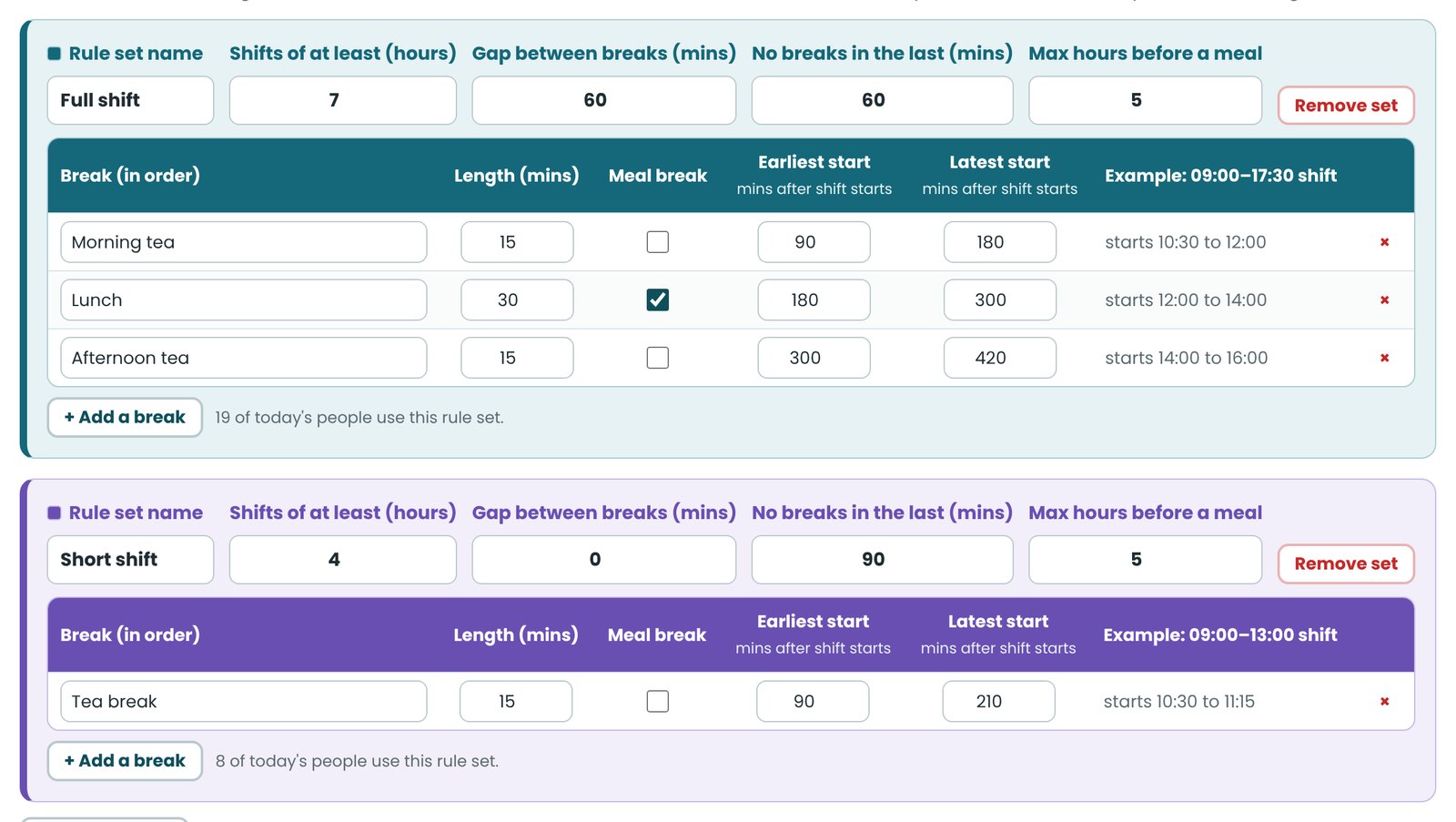
Set your break rules the way your award or agreement says. Each rule set covers shifts of at least a certain length: in the sample, anyone working 7 hours or more gets the Full shift rules and anyone working 4 hours or more gets the Short shift rules. Each person gets the right rules automatically.
- For each break, enter how long it is and the earliest and latest it can start after the shift begins. The example column shows what that means on a real shift.
- Keep a gap between breaks, keep the end of a shift free of breaks, and set the most hours someone can work before a meal break. Tick which breaks are meal breaks.
- Optional: limit how many people can be on a break at once.
3Calls for the day
- Pick the date and how your forecast is split: every 15, 30 or 60 minutes.
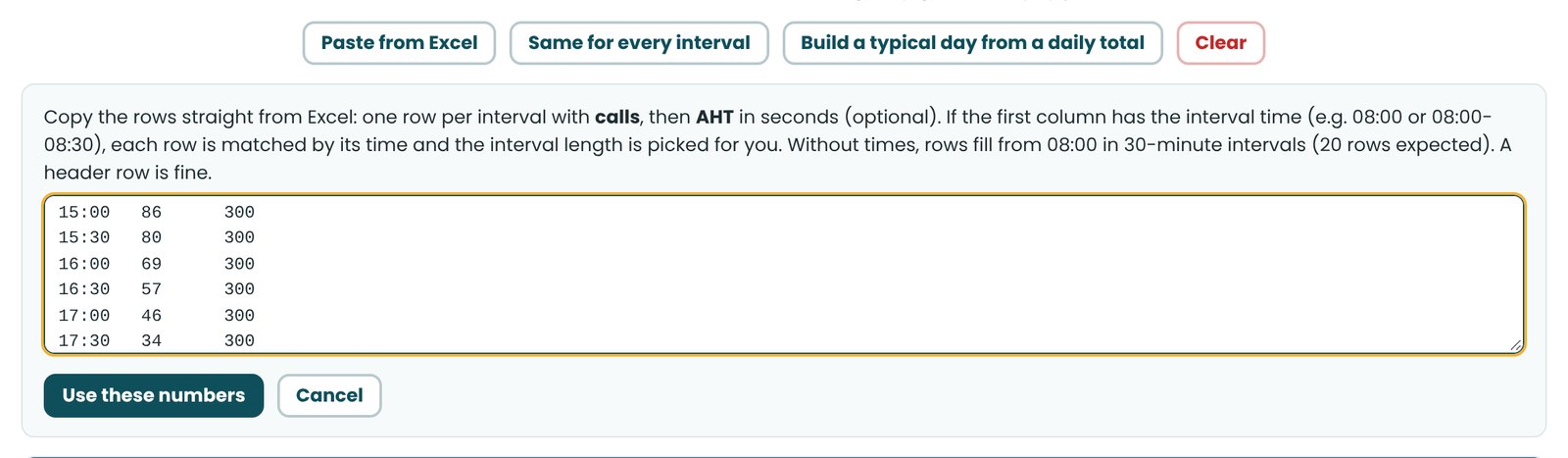
- If your forecast is in a spreadsheet, copy the rows and press Paste from Excel. Include the times if you have them (time, calls, handle time in seconds) and the wizard lines everything up for you.
- No forecast by interval? Use Build a typical day from a daily total: enter the calls you expect for the whole day and pick the shape that looks most like yours.
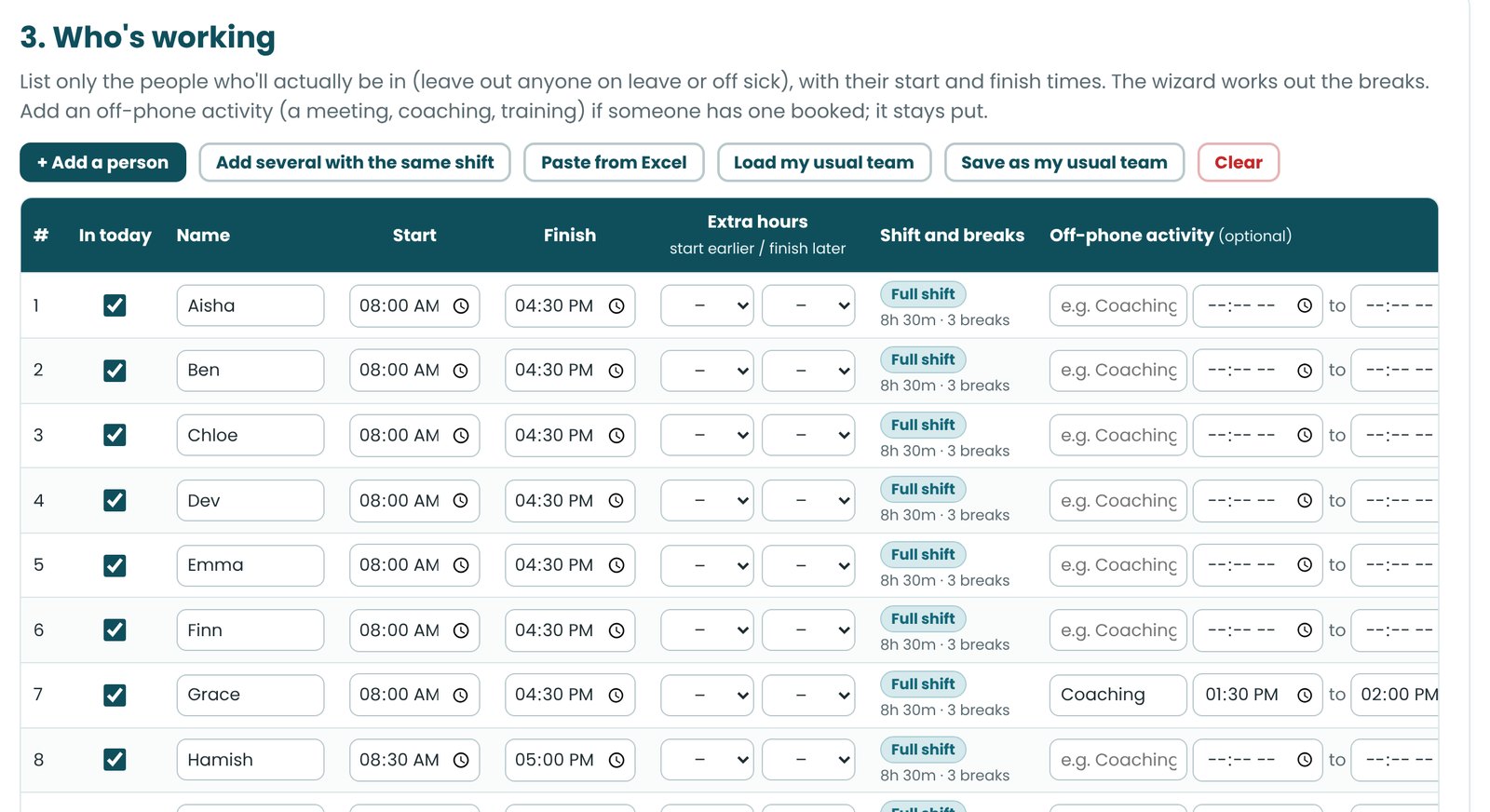
4Who's working
- Paste names and shift times from your roster, or press Load my usual team if you've saved one. List only the people who'll actually be in.
- If someone has a meeting, coaching or training booked, add it as an off-phone activity. It stays where you put it and breaks are planned around it.
- When the list is right, press Save as my usual team so it's there next time, then Build my roster.
5Your roster at a glance
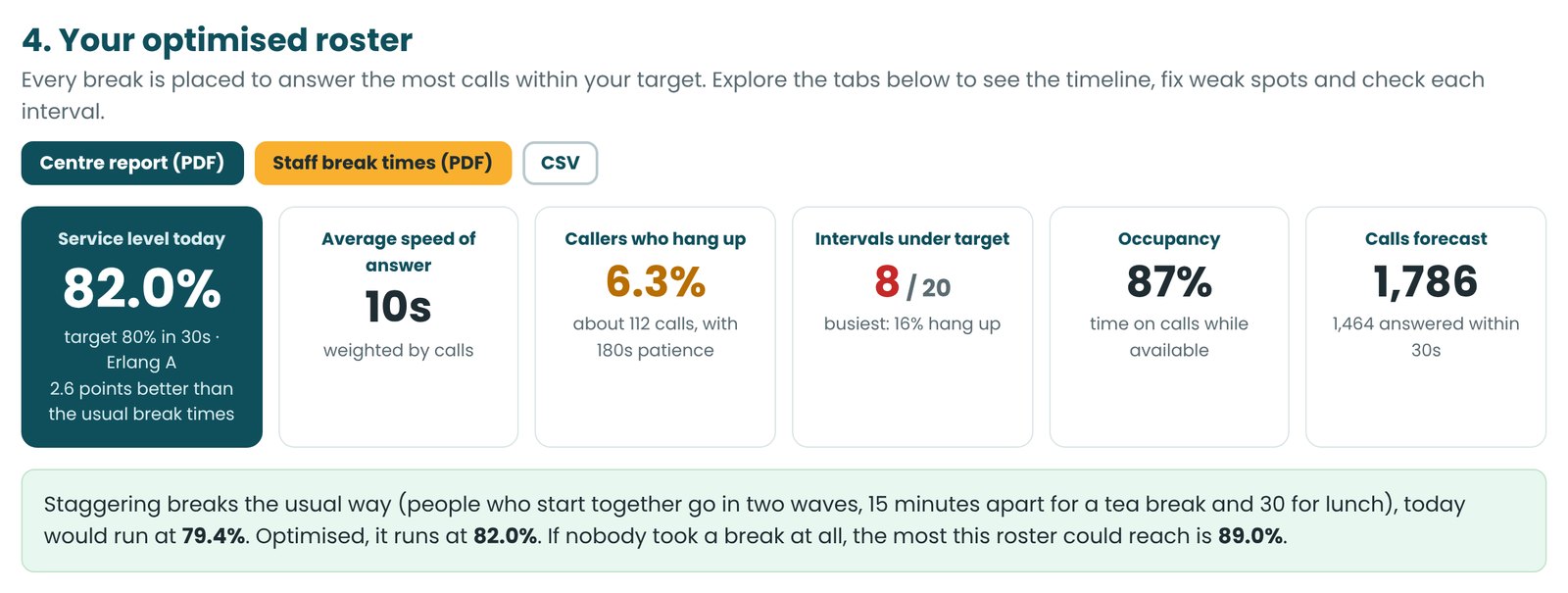
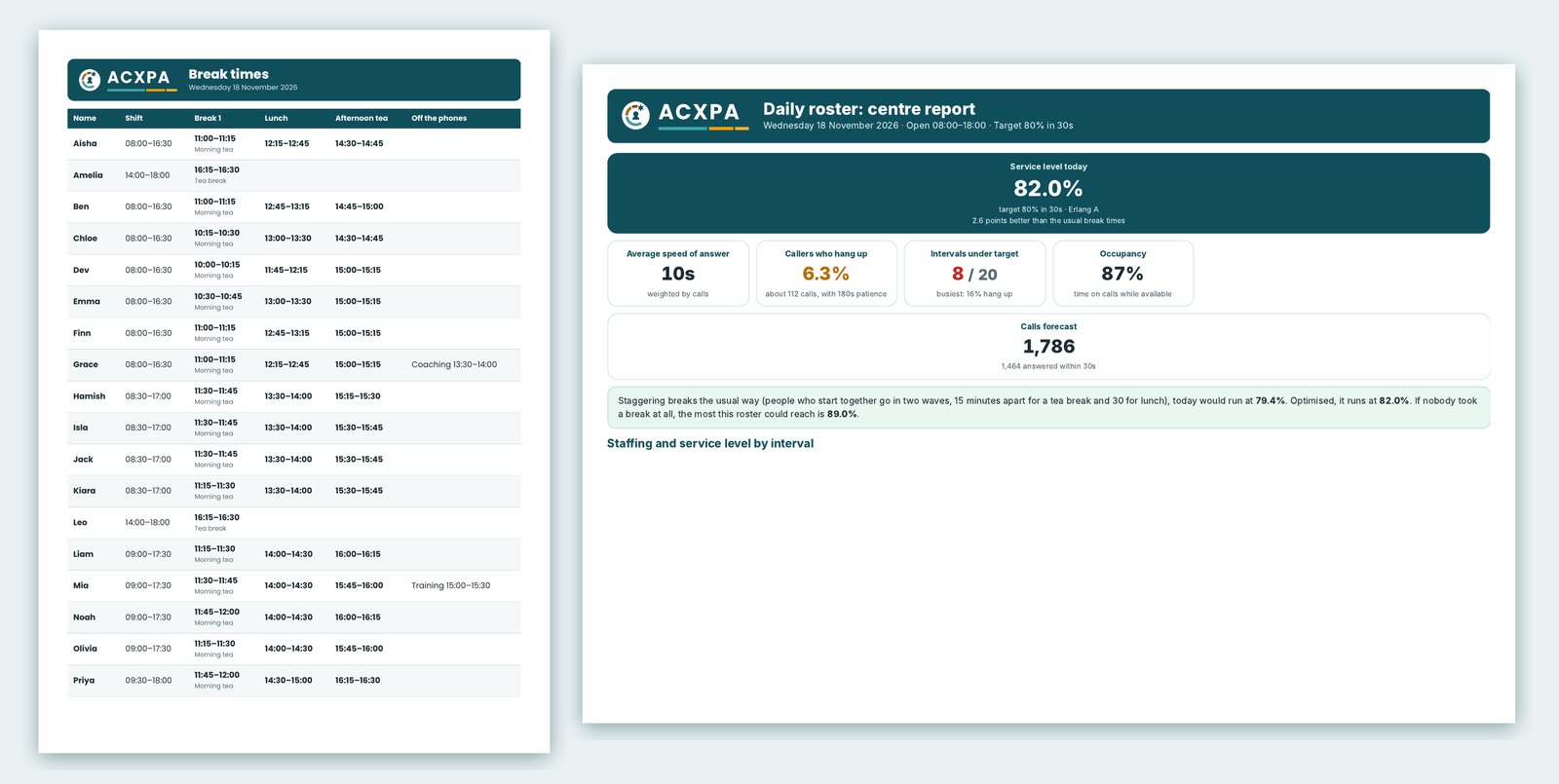
The big number is your service level for the day: the share of calls answered within your target. Next to it are how quickly calls are answered, how many callers are likely to hang up and how many parts of the day miss target.
The line underneath shows how much the smarter break times have helped, compared with staggering breaks the usual way (people who start together going in two waves). It also shows the most you could reach if nobody took a break at all. If even that misses your target, the answer is more people on, not different break times.
Below that are four tabs. Overview shows, through the day, how many people you need against how many are on the phones.
6The break timeline
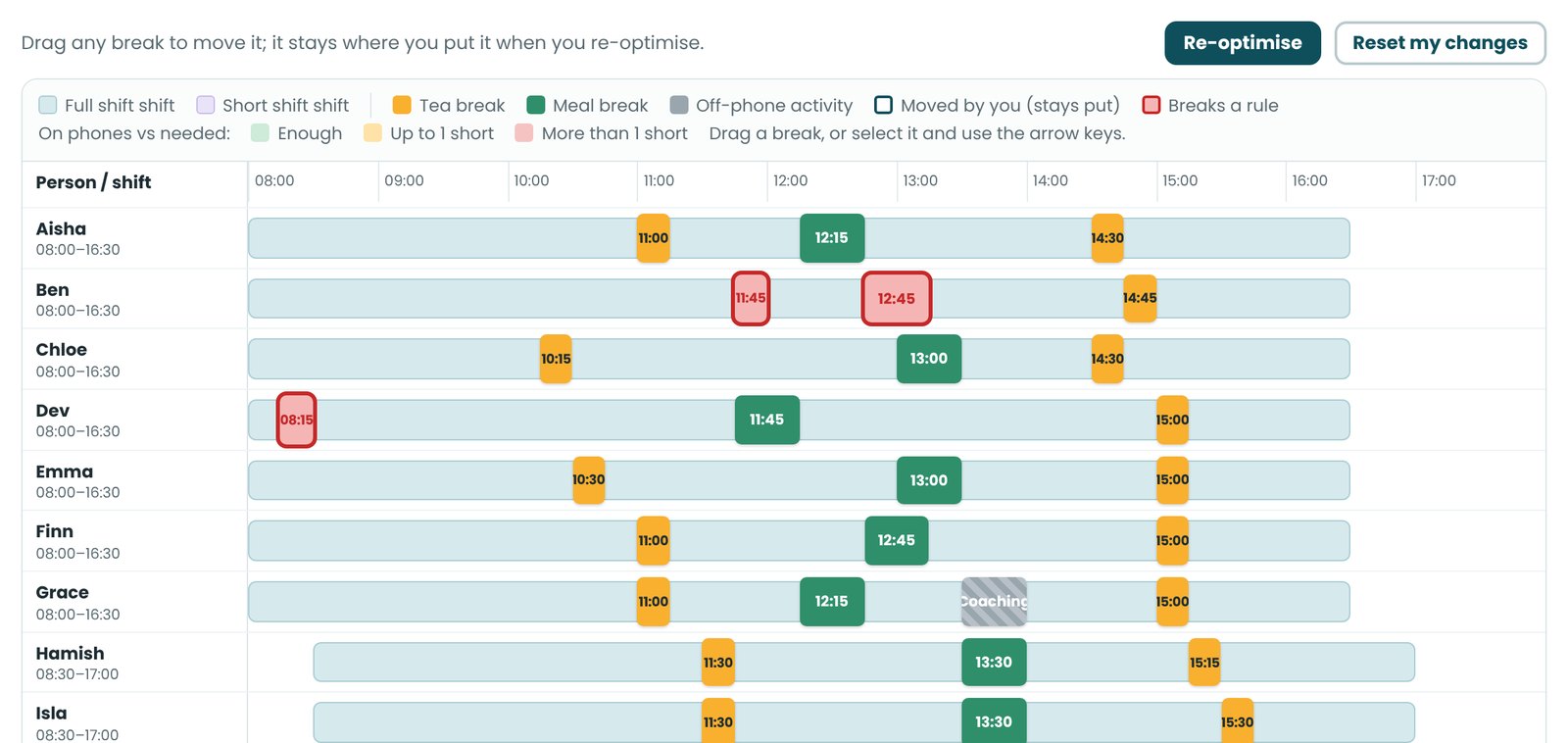
The Break timeline tab shows everyone's day. Tea breaks are orange and meal breaks are green. The coloured strip at the bottom shows whether you have enough people on the phones, all day.
- Need to move someone's break to suit them? Just drag it. The numbers update straight away and the wizard keeps it where you put it.
- If a move breaks one of your rules, the break turns red. Hover over it (or tap it) to see why, for example "Morning tea starts after its latest time".
- Changed your mind? Press Reset my changes. Underneath the timeline there's a simple list of everyone's break times.
7When the day doesn't go to plan
Even the best plan changes. This is where the wizard really helps.
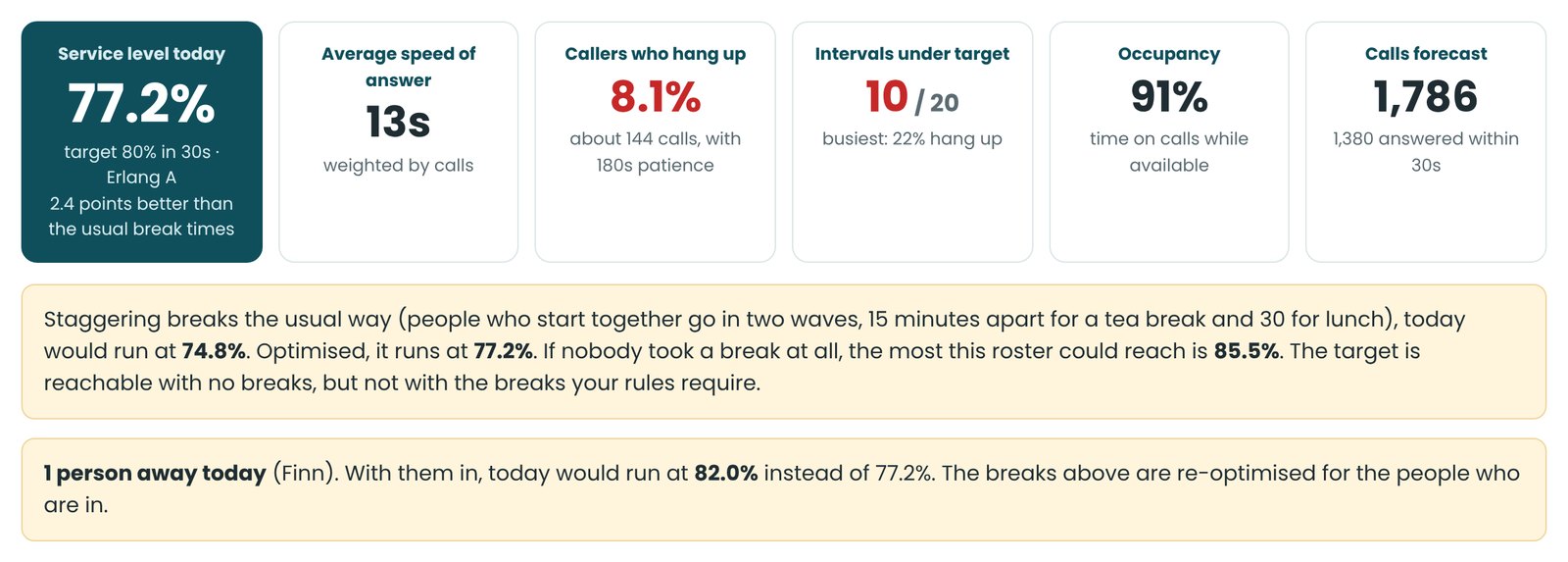
- Someone's called in sick? Go to Who's working and untick In today. The wizard reshuffles everyone else's breaks straight away and tells you what the absence costs.
- Some breaks already taken? Drag them to when they actually happened first. They stay put while the rest of the day is re-planned.
- Busier than expected? On the Overview tab, move the calls slider to match and press Re-optimise for this. The breaks are re-planned for the busier day.
8Improve the day
The Improve the day tab shows what would help most.
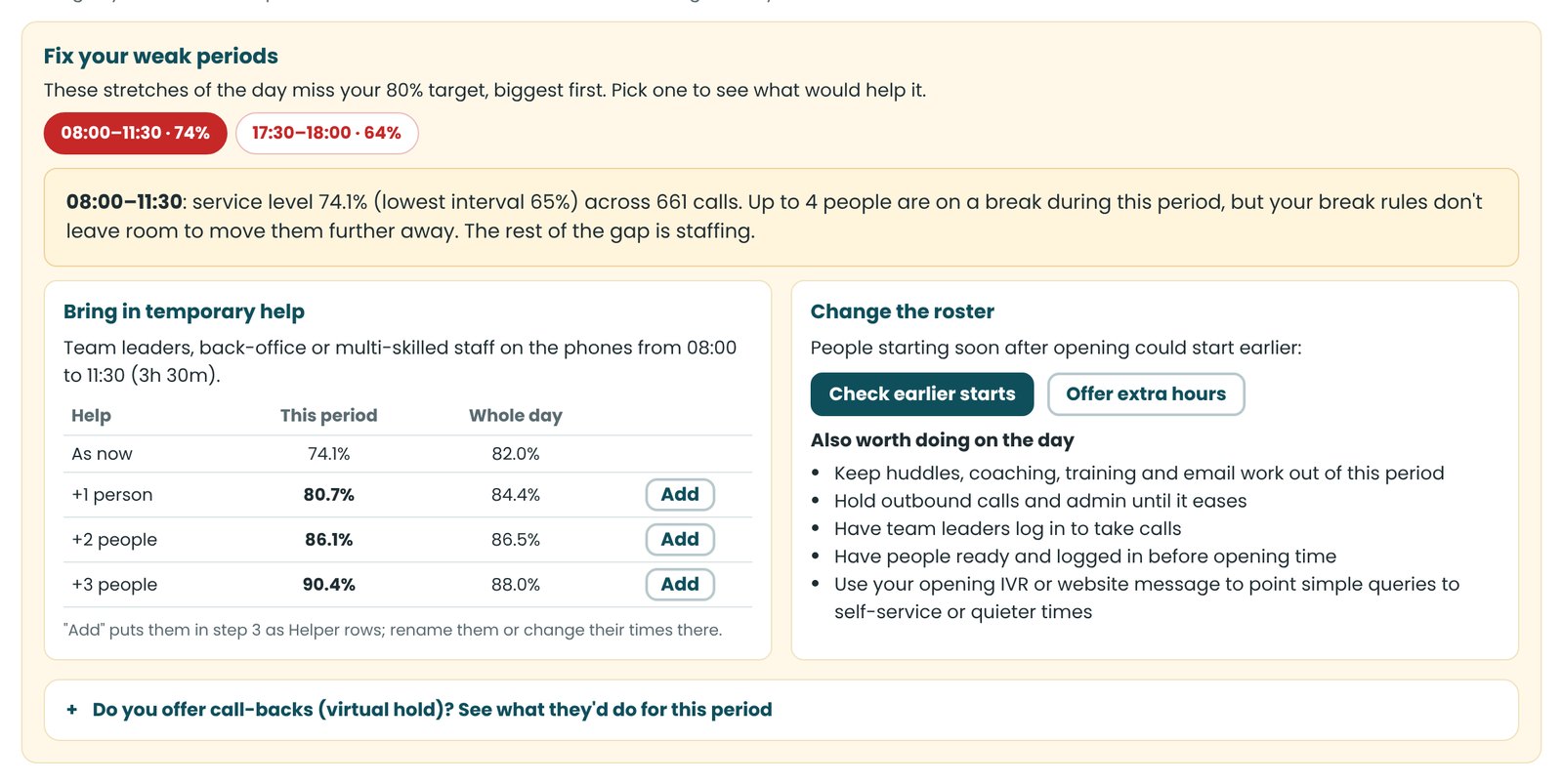
- Fix your weak periods lists the parts of the day that miss target and explains why. For each one it shows what an extra person or two would do (a team leader, or someone from the back office) and you can add them with one click.
- Offer extra hours or overtime: tick who's available, enter how many hours you can offer and press Find the best extra hours. The wizard puts them where they help most. Prefer someone else to do them? Change the hours in the list. Remove all extra hours clears them.
- You can also find the best time for one extra shift, or see what happens if people could start a little earlier or later.
9Share it and come back tomorrow
When you're happy, use the two downloads at the top of Your roster:
- Staff break times (PDF): a clean list to send to your team.
- Centre report (PDF): every number, the timeline and each interval, for you or your manager.
Next time, the wizard opens on a fresh day with your settings and usual team ready. Add the calls, tick who's in, and your break times are done in a couple of minutes.
Ready to plan tomorrow's breaks?
The Daily Roster Wizard is included with ACXPA Business Membership.